Description:
Calendar with possibility to mark if resources for some date are free or not. There are 3 states: "Reserved", "Occupied", "Free" (descriptions ma be changed in admin panel). Calendar is generated by the script and it let users to go through years back and forward. Calendar days are displayed regarding the real dates (feb 29!). Administrator can mark dates just by clicking on calendar day cell's. Script is written in PHP (with MySQL) and JavaScript. When you install it you may link directly to calendar or include it in your web page (via PHP or SSI). Script is under GPL license so you may download and use it for free.
Light version features:
- Easy navigation - unlimited back/forward by years.
- Real dates (feb 29!).
- Admin area for easy administration - click date to select.
- Possibility to include in any .php page.
- Possibility to easy translate months and states to any language.
- Possibility to customize descriptions.
- Possibility enable/disable copyright notice.
- Possibility to create one calendar and one administrator account
- Three possible states to define for each date
Demo:
Click screenshot to access demo:
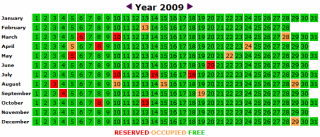
Calendar demo
Installation:
- Unpack downloaded archive.
- Prepare new MySQL database.
- CHMOD following files to be writeable by Apache (if unsure please set 777): mysql.inc.php, conf.inc.php, lang.inc.php.
- Execute "install.php" by opening it in your web browser (http://yourserver/yourpath/install.php) and follow the instructions.
- Don't forget to remove "install.php" from your server when setup is done!
- To access calendar, open "calendar.php" file. Admin area may be accesed via "admin.php". Additionaly you may include "calendar.php" in any of your php pages (as in attached example file "index.sample.php").
Updating (since version 1.1):
- Backup your current files.
- Unpack new version.
- Copy these files from your backup "mysql.inc.php", "conf.inc.php", "lang.inc.php" to your new version directory (overwrite if necessary).
- Remove "install.php" from your new version directory.
Download
To download this script for free you please visit my download page.
Changelog
- Version 1.0b (2009.09.17) - first script release
- Version 1.0.1 (2009.10.05) - improved language support
- Version 1.1 (2009.10.28) - improved installation script, all settings may be changed in admin panel (no need to edit configuration files in notepad as in previous versions), possibility to disable copyright notice (Powered by...), optimized MySQL queries, some code cleanup
- Version 1.2 (2010.01.04) - code optimization and cleanup, fixed character encoding in admin panel, fixed rss channel display when unreachable
Donations are welcome:
Booking Calendar Lite is free of charge but your donations help to pay some hosting bills and motivate its developer to continue his great work.
License:
Booking Calendar Lite is under GPL license from the Free Software Foundation. The code is provided «as-is» and in no event shall the copyright owner or contributors be liable for any direct, indirect, incidental, special, exemplary, or consequential damages.
Please rate my script:
|
||||

Pingback: Booking Calendar Lite 1.2 released! | KreCi's Blog
Hallo how can i download your booking calander ?
You need to subscribe for software notifications (on right sidebar) and you will be redirected to download page after email confirmation.
Very nice work!!!
i’ve downloaded the files.. done the CHMOD and when i press to create database it show me this error: MySQL_Connect Error – please check your setup and try again.
is anything related to the host? i’m not sure if it supports MySQL… i’ve tried to configure it with an offline server with MySQL support but it shows the same error..
can you help me? thanks in advance!
You first need to create mysql database and then use the details (user, pass, host) to connect to it. If you are unsure ask your administrator first.
same issue here.
My database already exists, but I have the same error
Hi Chris!
Nice calendar,
is it possible to see a week’s day on the top ?
regards
Sergey
No, not in current version.
Hi Chris!, i can’t find the “software notification” form you mentioned for downloading the script??…
Now it is called “Email notifications” – on right sidebar.
Why cant i log into admin the error i get is
You don’t have permission to talk! Goodbye!
Please verify your .htaccess server settings.
Hi, I have the same problem as Göte; I can’t get into the admin area. I tried many times but it is of no use! I need help! Thank you very much in advance..
same problem here too, everything works fine on my local settup but not on the server it dosent want to let me login after numerous trys and reinstalling.. not sure if anyone else who had this problem got it sorted.
hi chris,
in sql.txt I saw that Dumping data for table `calendar` only goes to 2014 – does this mean that the calendar only works until 2014?
rgds
starfish
Hi, I am not sure what are you using for “dumping” data but it work after 2014. See demo here:
http://dev.kreci.net/calendar/index.php?y=2016
Hi, how can I usse this in Joomla?
Sorry you can’t without modification of the code…
Hi there,
Thanks for the script, looks nice!
I’ve got the following situation; I would like to use this script to check accommodation availability.
In my database, info is stored, after a few joins, as follows:
start-date
end-date
status
Having start and end date normally saved as 2010-12-01 etc. I found out how to show only the current month in a row, which I like about this script! Now the following.. Can I flag certain days as busy/occupied when saved as below?
Data example: Occupied from 2010-12-01(start-date) till 2010-12-14(end-date).
Thanks in advance!
I’m getting the talk thing when I try to get into admin too. How do I verify my .htaccess settings??? I have no idea what that means as there is no htaccess file in the download.
There is no .htaccess – authorization request is being generated by php script.
Well, very nice, im gonna test it, and ill use it, this is exactly what im looking for!
Hi,
I’m having the same problem as Gote and some others on here..
Setting up fine, then go to log into Admin and doesn’t accept the pass…
I’ve reinstalled a couple of times and double-double checked the user and pass, and double checked the pass stored in conf.inc.php.
Any ideas?
Thanks..
I’m having the same problem. Is it working?
everything’s fine. easy set-up, fully functional. great work! I just can’t remove the admin area login link in the view mode. any ideas?
im having the same problem, it wont let me log in.
Can you explain how to fix?
cheers
How does the MySQL table set the dates?
Because I already got a system that uses a table with the field:
From (date)
To (date)
Name (Text)
And I want a calendar to pick the dates from there. So I need to know a little more about the table structure.
Thank you very much.
hi,
ive installed the booking calander ann everything installs find,
however when I login as a admin and select a date/ a state
and then submit, it never saves anything to the DB,
ive gone throught the code and cant work out why its not saving.
have you any ideas,
thanks
Hi!
is there a way to make customers book their own day? Having admin to confirm, erase and/or change those bookingdays?
I have searched in months for this type of script that give customers the chance to book and the admin to confirm.
Please mail / noficy me, Im not home right now! Thanks
I have the same problem with .htaccess. How can i fix this?
i tried to create a database:
click here to create database.
“; } else { echo ”
Please fix the problem and try again.
“; } } else { ?>
Set your administrator username and password:
Username:
Password:
Provide your MySQL database details:
MySQL hostname:
MySQL username:
MySQL password:
MySQL database name:
what do i fill in?
greetings bert
You need to prepare empty mysql database before running setup of this script.
Everything seems to work very well. Thank you.
Two questions: The admin pages gives me this error message “Fatal error: Cannot instantiate non-existent class: simplexmlelement in /…/calendar/functions.inc.php on line 196”. Can you tell me what I have to do to get rid of it.
Can you tell me where the colors for the calendar are set, as I would like to change them.
Thanks again.
I’ve changed the colors. The problem with the error message remains.
Thanks.
Hi!
Very nice calendar, works perfect for me.
Would it be possible to make this multi-user so that users could register and add their availability?
– Chris
Currently I am not doing custom modifications. Sorry.
Hi Chris, I want to modify month like year. So month can select like year. Could you advise me, which script need to modify. Thank you.
Very very very good work.
Thanks a lot.
hi, how can i use this calendar for more than one user? ie: online availability calendar for rental website. each user has its own rental property and availability calendar.
You need to customize it for your needs (you can hire a freelancer for about $30 that will help you).
How do I download?
If I press the downloadlink nothing happends.
If I try to subscribe email, it says that option has been disabled :-(
thank you kreci, i have modified your calendar to my needs in my website and works like a charm .
How do I place this on a HTML website?
Hey
Just wanted to say Thanks! I searched the internet for days looking for a nice availability calendar but couldn’t find one that was easy to work with, til I found yours.
I have modified it a little. I didn’t like the fact that in August, the 8 month, that 2/3 of the calendar was displayed but kinda useless. So I started the Cal at Aug, or what-ever the current month is, and still display 12 months. So if Aug is the current Month, it will display Aug-Year to July-Year+1.
For me, it makes it a little easier as a room booking app. I also added rooms to the table so you can view a rooms availability.
And I am in the process of converting it MySQLi.
Anyway .. Thanks again